Articles, how-to's, and tutorials for those trying to use Claude to free up their time. Run your business more efficiently - swipe my prompts!
What's Supabase + Why Should You Connect it to Your Claude?
|
Goooooood morning!! It’s 11:33am, the baby is napping with her dad, and I’ve just downed a 16oz iced white mocha with oat milk and a ham+cheese croissant so I can bang out this post for you. If you’re just getting started with “vibe coding” - actually, I suppose I should cover what THAT is first just in case you’re not familiar. Vibe coding is building software by describing what you want in plain language (ie., “can u build me a database pls”) and letting an AI write, run, and iterate on the code, with you steering by feel and outcome rather than by hand-writing every line yourself. Basically It’s inputting what you want Providing feedback to adjust the output And letting Claude (or Chat) code the entire thing for you. It’s incredible. It’s FUN. And it might be the most I’ve enjoyed being online in the past several years. So. now that you know what vibe coding is, you’ll need to know a couple things about actually DOING the vibing.
You really need:
if it sounds overwhelming, I promise it’s really simple. once you get eveyrthing set up for the first time, you never have to do it again. So before we can really do any sort of database, task management, etc - we have to have a backend to store and manage your data. Think of it like having an Airtable or a spreadsheet where all the important data is being stored every time you ask for something that requires a password, or email input, or a magic link login, etc. In this post below we go over:
why Supabase, specificallyDoesn’t matter if it’s a quiz funnel, a membership app, a tracker, whatever: you need a backend. The second you want to save something (a user, a form response, a login) you need somewhere for that data to live. That’s what Supabase is. It’s your database, your login system, your file storage, and your “run this code automatically” system, all bundled into one dashboard. Convenient af. It’s built on Postgres, which is the real, grown-up, industry-standard database that actual engineers use. Sooooo you’re not building on some flimsy toy version of a database that you’ll outgrow in a month- you’re building on the same stuff powering really big companies, you’re just accessing it through an interface that doesn’t make you want to throw your laptop out the window. (We’ve all been there amiright) And bc we don’t believe in making extra work for ourselves, we can connect Supabase DIRECTLY to Claude Code. That means instead of clicking through a dashboard trying to remember what a “foreign key” is, you just tell Claude what you want in plain English and it does the database work for you. “Create a table for quiz results with name, email, and archetype” and it magically works. ;) & on the Supabase free tier…
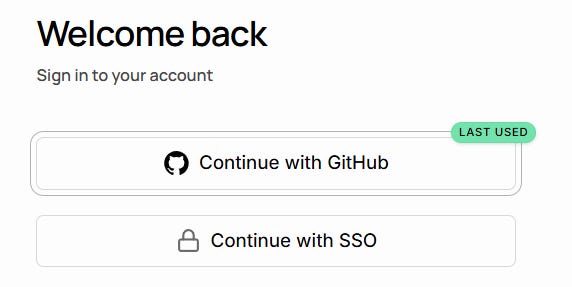
It’s a fuck ton. So you really don’t need to pay for it, mmk? Don’t let it talk you into subscribing until you actually have to. THE ONLY DRAWBACK: free projects pause after a week of no activity, and there are no automatic backups. So this is perfect for building, testing, prototyping, and even running early-stage products with light traffic. It is NOT the place to keep your only copy of mission-critical client data with zero backup plan. Build here, but back up your important stuff, and graduate to the $25/month Pro plan when you've got real users depending on uptime. I have yet to run into this being an issue as I’m pretty active with the databases I’m using. connecting Claude to Supabase, step by step (in regular claude)Step 1: Get a Supabase account. Head to supabase.com and sign up. It’s free, no card required. (I recommend creating a Github account FIRST, and then signing in with that. Below, you can see that I sign in with my GitHub, which I will go into more detail on later!)
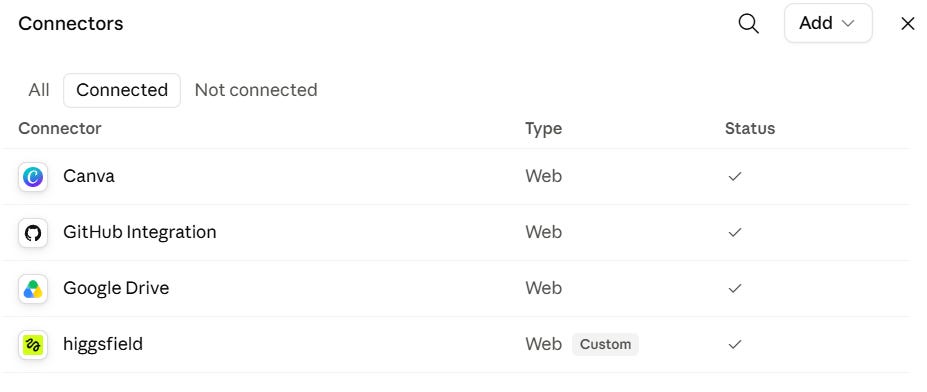
Step 2: Create a project. Give it a name, set a database password (save this somewhere, you’ll want it later), and pick a region close to you or your users. Step 3: Open Claude and find the connectors menu. In Claude.ai or Claude Desktop, look for the connectors option in your settings. Supabase is now an official, built-in connector, so you don’t need to mess with any manual setup or copy-pasting API keys into config files. SETTINGS > CONNECTORS (it’s under Customize)
As you can see, I don’t have Supabase connected. That’s because I recently DISconnected it for a specific unrelated reason and need to reconnect it.
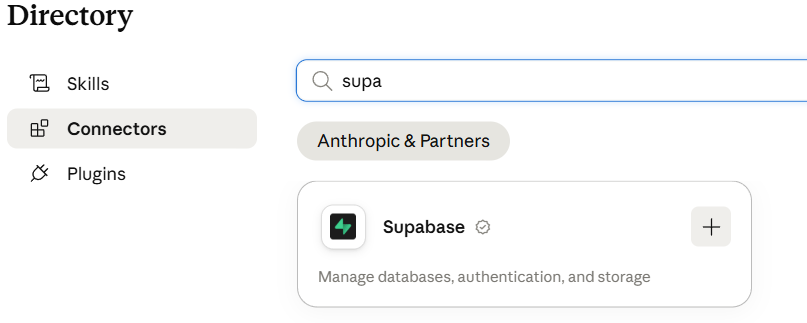
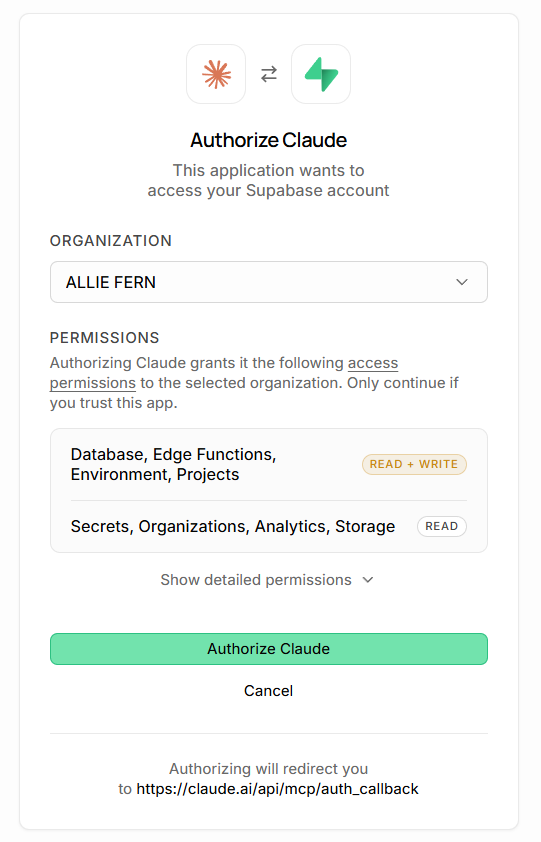
Step 4: Select Supabase and authorize it. Claude will ask permission to access your Supabase organization. Say yes, log in through the popup, and you’re connected.
Boom. Step 5: Talk to your database like a normal human. That’s genuinely it. Ez Pz. Once it’s connected, you can ask Claude to build tables, write queries, check for security issues, generate types for your code, deploy edge functions, manage storage buckets, all in plain language. No dashboard-clicking, no remembering SQL syntax you learned once and forgot immediately. Sounds like something you’ll never do, but I promise you, half the stuff you want to code will likely involve a table or edge functions. ;) Heads up: this connector currently works on paid Claude plans (Pro, Team, Enterprise, or Max), not the free Claude tier. Since Claude Code is terminal/IDE-based, the setup’s a little different from the claude.ai connector — here’s the quick version: connecting Supabase to claude code:
Now I know you have questions after reading that haha bc I did too. So here’s the breakdown: What's the “terminal”? What’s a “config command”? The actual command to add Supabase:
Okay. Now. Just ping the chat if you have questions about that, because it was a LOT. And the chat is there for a reason - to ACTUALLY support you through all the questions you have. I believe I’ve enabled the upload of files and all that jazz so you should be able to provide screenshots etc. |

Coffee & Claude
Articles, how-to's, and tutorials for those trying to use Claude to free up their time. Run your business more efficiently - swipe my prompts!
Yup. the rumors are true. there's a 7-day free trial waiting for you at the Bureau of Bad Bitches. Claim it! xoxo Allie
We’ve come SO far from images where extra fingers and toes were just a normal occurrence. I legit remember friends of mine were photoshopping nails onto their images because for some reason, ChatGPT couldn’t handle fingernails?! And now, look at these photos in the cover image. They’re… beautiful. So today I’m going to review Higgsfield Soul 2.0, which has actually become my FAVORITE portrait generator. You can already tell it’s going to be positive (mostly) but I do have some things to say...